Tuesday, 19 June 2012

Remove blogger navbar

blogger-navbar-remove
Blogger have many features some are good some are bad. One of the blogger feature is navbar but most of the bloggers hates the navbar. I recommend to use Custom blogger template which is better then the blogger’s template. Well if you still want to use blogger’s template and wanted to remove the blogger navbar then simply follow the simple steps.


Removing Blogger’s Navbar


1. Login into your blogger blog.
2. Go to template and click on Edit Html
3. Now search <b:skin><![CDATA[ and paste the following code just after it.
#navbar-iframe { 
display: none !important; 
}


4. Now save your blogger template and you have done.

Monday, 18 June 2012

Submit Your Blogspot Sitemap to Yahoo

Yahoo Site Explorer Add My Site page
One of the most important ways to attract traffic to your site is to ensure that your Blogger (Blogspot) blog is properly indexed by popular search engines such as Yahoo. If you want to increase your chances of having your site quickly indexed by the Yahoo search engine it pays to submit your site and your feed. In this tutorial we will be covering the process of signing up with Yahoo, authenticating your site and adding your site feed to Yahoo Site Explorer.

Yahoo can be notoriously slow at indexing and will not necessarily include all crawled pages in its search results. For guaranteed inclusion you can opt for a paid service but if you follow the steps below you have a good chance of having your Blogger blog properly indexed relatively quickly and without any cost.

1. Sign up for a free Yahoo Account if you don't already have one.

2. Sign in to Yahoo Site Explorer where you will be taken to the MySites page.

3. Submit your Blogger website by entering the URL of your blog and then clicking on the Add My Site button.

Yahoo Site Explorer Add My Site
4. You will now see your website address included in the site list. The 3 columns to the right contain information about feeds, actions, and status. You will notice that the status of your site will be set to new (represented by a yellow circle). Click on the link to your site or click the Explore button.

5. You will be taken to the results page and should get a message like the one pictured below.

Yahoo site Explorer Results Page
6. From the menu on the left click on the Authentication

7. You will be presented with 2 authentication options. Choose Add a META Tag from the dropdown menu then copy the code provided using Ctrl + C.

8. In a new window of your browser login to your Blogger blog. Keep the window of Site Explorer open as we will be returning.

9. Navigate to Layout > Edit HTML in your Blogger (Blogspot) blog

10. When you arrive at the Template page it is a good idea to make a backup of your site's template as a precaution. Go ahead and download it your computer by clicking on the Download Template link. Remember if you inadvertently overwrite some code you may not be able to restore your template so it is worth taking an extra few moments to do this step.

11. Once you have backed up your site locate the Head tag. It will be only a few lines of code down from the top. Now insert the copied code from Yahoo in the position suggested as shown in the picture below using the Ctrl + V command.

Blogger Template Head Tag
12. Once you have pasted the code into the template there is still one further action needed. You will need to add a trailing slash at the end of the new line of code to avoid getting a parse error. Once you have added the trailing slash and are certain you have placed the code in the correct position go ahead and click on the Save Template button.

add yahoo meta tag to blogger template
13. Return to Yahoo Site Explorer and follow the mysite link. You will see that the status of your site has been verified and is represented by a green checkmark.

14. From the lefthand menu select Feeds. You will be taken to the feeds page where you can go ahead and add a feed for your blog by entering the URL of the feed. Notice in the example below I have set an extra parameter to handle redirection of the feed by services such as Feedburner.

Add a Feed to Yahoo
15. Once the feed has been accepted it takes around 24 hours before it is active. After this time and provided there are no errors Yahoo displays "processed" followed by a green tick as can be seen in the picture below.

Yahoo Feed Confirmation
You have now completed the steps involved in having your Blogger (Blogspot) blog crawled and indexed by Yahoo. All that is left to do is to check back periodically to see if Yahoo has indexed your pages. This process can take time so don't expect overnight results. However once Yahoo recognises your feed your pages will be regularly crawled and any updates in content indexed. The process of adding a feed and verifying your site will have gone a long way towards ensuring your site is included in Yahoo search engine results.

Tips for Adding Blogger Blog to Yahoo Site Explorer
Tips for Submitting Your Blogger Blog to Yahoo
Yahoo Search Engine Optimisation for Blogspot Bloggers
SEO For Blogger Blogs with Yahoo
Faster indexing of your Blogger Blog by Yahoo
How to Ensure Your Blogger Blog is Indexed by Yahoo
Speed Up Indexing of Your Blogger Blog by Yahoo
Yahoo Search Engine and Blogger Blogs

In this tutorial you have learned how to submit your Blogger (Blogspot) blog to Yahoo Site Explorer by authenicating your site and adding a feed which Yahoo can use as a sitemap to improve its indexing of your pages.

20MB Etisalat Facebook Promo

Etisalat is on Point again with their Free MB. Its all about the Facebook Free Bundle where you can get upto 2GB for Free using a Simple Scope over Etisalat & Facebook.

All you need to do is to Text FBM to 229 for Free and you will be giving 20MB.

You will receive a Message after some Minutes telling you that your Request is been Processed and to wait for a confirmation SMS.

Now, You will receive another Message like this: You are now on Monthly Facebook Plan, Click http://d.fb.me/985 to download FB App.

To Opt out of Auto-renewal at Validity, Dial *229*0*0#.

NOTE:- The More you Send the Message, The More they send you an Additional 20MB, So you can enjoy upto 500MB depending on You!
 join us on facebook
we love comment

Sunday, 17 June 2012

How to Embed External Content on Your Blogger Posts or Pages


When you write content or publish posts, sometimes you may wonder how to add external content in your posts. Yeah... it could be image, links. But those are possible in Blogger post editor. Here I'm referring to external content such as embedding videos, simple widgets, buttons kind of things. Did you wanted to add such a content in your posts. May be not yet. But think of a scenario adding poll widget in a post or it could be a follow button on a page in between text. Wonder how to add such content to your posts via Post Editor?


Blogger let you write your content with text and by adding media such as images and videos directly to the post editor while you are in Compose mode. But did you ever try out HTML mode? Alright, that's what I'm talking about. HTML mode of your post editor reveals raw HTML code behind your content. So it will enable you to edit your content if you are much familiar to HTML (Hyper Text Markup Language). Couldn't find HTML mode yet? Be patient and continue with steps below.

Steps:

1. Navigate to Blogger Dashboard.

2. Click on your Blog Title.

3. Now as per your requirement, follow relevant instructions below.

Embed content on a post

Either click New post button to add content to your new post or jump to Posts tab and click Edit link by hovering on your existing post.

Embed content on a static page

Jump to Pages tab and either click Edit link by hovering on an existing page or add Blank page via New page drop down button if you wanna embed content in a new page.


4. Now you will be directed to post editor. Switch to HTML view by clicking HTML button on top toolbar.

5. Now add or edit your existing code in the content text area and proceed with other modifications you prefer.

6. After modifying content, click Preview button to see how your code render in your post.

Note: Sometimes your code may not render or function well in preview mode.

7. Now Save or Publish your post.

Enjoy :-)
we love comments 
follow us on twitter 
add us on facebook 

How to Add an External Widget or Codes to Blogger

As a webmaster, web widgets are really matters if you wanna impress your readers or it can be used to improve user experience on your site. You can find different kind of widgets all over the web. It could be an official widget provided by organization, social plugin offered by social networks, widget offered by an online program or custom widget developed by users. And except for widgets, you might wanna add external code to your layout to render them, such as advertisements, badges, images, videos, links, web tools. Commonly, in most scenarios they will provide HTML code or Java Script code for you to add on your blog. But when it comes to Blogger, you may have no idea about how you gonna add them. You wanna know how to?

Blogger officially offers you list of widgets to be added on your blog directly via Blogger gadget list. But beyond Blogger gadgets, it does let you add external aka third-party functionality or code to your blog. Blogger has a specific element called HTML/JavaScript. It will enable users to render their external code on their blogs without accessing blog template directly. So if you are non-technical sort of user, you will find this really beneficial. Got external code to add on your blog? Let's figure out how to.

Steps:

1. Navigate to Blogger Dashboard.

2. Click on your Blog Title.

3. Jump to Layout tab from left pane.

4. Here you will able to see all your elements on your layout. Click on an Add a Gadget link.

5. Scroll and find HTML/JavaScript element from the pop-up gadget list.


6. Now you can sum up a title on Title field if you want and add your third-party content or code right into the Content text field.

7. After adding your code, click Save button.

8. Now arrange or position your element by dragging it over the layout.

9. Preview your blog for added element on your blog.

Note: Sometimes your element or code may not render or function well in preview mode.

10. Once confirmed preview, click Save arrangement button on top.

Enjoy :-)

Adding Floating Share Buttons with Pinterest ‘Pin it’ to Blogger Posts

There were so many requests on this post asking me to update the floating share buttons with Pinterest Pin it button. But I wasn’t on Pinterest then and never gave gave it much consideration…I said to myself it’s just a new, obscure social network that’s going to fade away in no time. I was wrong! Pinterest has grown to be the third largest social network in the world after Facebook and Twitter and that got me thinking where the heck is Google +! Pinterest can be a real source of traffic if well used and this is a proven fact. Ignoring the potential of Pinterest in driving traffic to your site and exposing your content to a wider audience isn’t such a wise idea.
floating share button with pinterest
This new floating share buttons is quite similar to the one I posted last year but the tweet button is changed and Pinterest “Pin it” button is now included. Other buttons included are StumbleUpon, Digg, Google +1 and Facebook share.
Adding these floating share buttons to your blog is a sure way to drive more traffic to your posts as users visitors find it easier using the fixed buttons. It’s a clear message asking them they should share the post ;)

Adding the Floating Share Buttons to Blogger

- Log in to Blogger and go to Template > Edit HTML
- Check the box labelled Expand Widgets Template
- Search for <data:post.body/> or <div class='post-footer-line post-footer-line-1'/>
- In the line just below that, paste this code:


<b:if cond='data:blog.pageType == &quot;item&quot;'>
<!--Start Floating Share Buttons with Pinterest doncaprio.com-->
<style type='text/css'>
#pageshare {position:fixed; bottom:15%; right:10px; float:left; border: 1px solid black; border-radius:5px;-moz-border-radius:5px;-webkit-border-radius:5px;background-color:#eff3fa;padding:0 0 2px 0;z-index:10;} #pageshare .sbutton {float:left;clear:both;margin:5px 5px 0 5px;}
.fb_share_count_top {width:48px !important;}
.fb_share_count_top, .fb_share_count_inner {-moz-border-radius:3px;-webkit-border-radius:3px;}
.FBConnectButton_Small, .FBConnectButton_RTL_Small {width:49px !important; -moz-border-radius:3px;-webkit-border-radius:3px;}
.FBConnectButton_Small .FBConnectButton_Text {padding:2px 2px 3px !important;-moz-border-radius:3px;-webkit-border-radius:3px;font-size:8px;}
</style>
<div id='pageshare' title='Share with your friends'>
<div class='sbutton' id='fb'>
<a href='http://www.facebook.com/sharer.php' name='fb_share' type='box_count'>Share</a><script src='http://static.ak.fbcdn.net/connect.php/js/FB.Share' type='text/javascript'/>
</div>
<div class='sbutton' id='rt'>
<script src='http://tweetmeme.com/i/scripts/button.js' type='text/javascript'/>
</div>
<div class='sbutton' id='gplusone'>
<script src='https://apis.google.com/js/plusone.js' type='text/javascript'/>
<g:plusone size='tall'/>
</div>
<div class='sbutton' id='gb'>
<a class='pin-it-button' count-layout='vertical' expr:href='&quot;http://pinterest.com/pin/create/button/?url=&quot; + data:post.url'>Pin It</a>
<a href='javascript:void(run_pinmarklet())' style='margin-left:-46px; width:43px; height:20px; display:inline-block;'/>
<script src='http://assets.pinterest.com/js/pinit.js' type='text/javascript'/>
<script type='text/javascript'>
function run_pinmarklet() {
var e=document.createElement(&#39;script&#39;);
e.setAttribute(&#39;type&#39;,&#39;text/javascript&#39;);
e.setAttribute(&#39;charset&#39;,&#39;UTF-8&#39;);
e.setAttribute(&#39;src&#39;,&#39;http://assets.pinterest.com/js/pinmarklet.js?r=&#39; + Math.random()*99999999);
document.body.appendChild(e);
}
</script>
</div>
<div class='sbutton' id='su'>
<script src='http://www.stumbleupon.com/hostedbadge.php?s=5'/>
</div>
<div class='sbutton' id='digg' style='margin-left:3px;width:48px'>
<script src='http://widgets.digg.com/buttons.js' type='text/javascript'/>
<a class='DiggThisButton DiggMedium'/>
</div>
<br/>
<div style='clear: both;font-size: 8px;text-align:center;'><a href='http://www.doncaprio.com/2012/05/adding-floating-share-buttons-with-pinterest-pin-it-for-blogger.html' style='text-decoration: none;' target='_blank'><font color='#816D77' decoration='none'>Get widget</font></a></div><!-- Do not remove this link -->
</div>
<!--End Floating Share Buttons with Pinterest doncaprio.com-->
</b:if>
- Now save your template.
This widget will only be shown in post pages because I couldn’t find a way to make the Pinterest button work on all pages. If you want the floating share buttons to appear on the left side of your post, find and change #pageshare {position:fixed; bottom:15%; right:10px; to this: #pageshare {position:fixed; bottom:15%; left:10px;

Friday, 15 June 2012

Top 15 google tricks and secrets

google tricks and secrets


There are lots of Google tricks to enhance your productivity.Below is a list of top 15 Google tricks that I believe everyone should be aware of it.


1. Google SSL


SSL stands for Secure Socket Layer


This is the new and in beta feature from Google. Google SSL is secure connection between your computer and Google server. Any third party can't your search queries and information. The main advantage of this service is, your search visits doesn't leave any referrer links to the visited URL


2 Google search to check Flight status


Syntax:
<Airlines-name> <Flight-number>


3 Search Mp3 of a particular singer/artist/album/song


 You can easily find an MP3 song on the Internet easily by narrowing the search by using the syntax:

?intitle:index.of? mp3
Try searching for Eminem space bound:
?intitle:index.of? mp3 Eminem   


4 All the Google Logos in one page by Google

 Try it..


5 Google dedication to Mothers all over the world


 6. Google Timeline


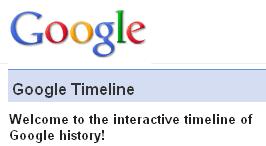
Know the Google history with their milestones in an Interactive Timeline manner on Google Timeline.
Check the Google history page as well.


 7 Go Green by Google


8 Rare Google Search Tips:

Try it...


9 Google Romance Search.


10 Google can search patents.

Google can scan through the thousands of patents all over the world.


11 Google TiSP

TiSP - Toilet Internet Service Provider. LOL


12 Google Gulp

Google can now quench your thirst with knowledge


13 Google url Shortener

You can now shorten your lengthy URLs using Google's goo.gl


14 Google Artificial Intelligence


15 Google indroduced Gmail Paper


Here is the new Gmail Paper. This is a new option available in Google Gmail.
You can easily request a hard copy of your message. Google will send you.


‟if you like this post please take 5 seconds to like it
and share it‟


like our page on facebook

Monday, 11 June 2012

Quick Tips To Search Google Like a Pro

Search Google Like Geek
I'll Teach how to search on google like pro and get your results quickly.

.

Example: "internet marketing"


Exclude Words:
Lets say you want to search for content about internet marketing, but you want to exclude any results that contain the term advertising. To do this, simply use the "-" sign in front of the word you want to exclude.


Example : Search: internet marketing -advertising


Site Specific Search :
Often, you want to search a specific website for content that matches a certain phrase. Even if the site doesn’t support a built-in search feature, you can use Google to search the site for your term. Simply use the "site:somesite.com" modifier.


Example: "internet marketing" site:www.smallbusinesshub.com


Download :
There is so many fileserver just include them in your search


For example : Site:mediafire.com books name


Similar Words and Synonyms:
Let’s say you are want to include a word in your search, but want to include results that contain similar words or synonyms. To do this, use the "~" in front of the word.


Example: "internet marketing" ~professional


Specific Document Types:
If you’re looking to find results that are of a specific type, you can use the modifier "filetype:". For example, you might want to find only PowerPoint presentations related to internet marketing.


Example: "internet marketing" filetype:ppt


This OR That:
By default, when you do a search, Google will include all the terms specified in the search. If you are looking for any one of one or more terms to match, then you can use the OR operator. (Note: The OR has to be capitalized).


Example: internet marketing OR advertising


Phone Listing:
Let’s say someone calls you on your mobile number and you don’t know how it is. If all you have is a phone number, you can look it up on Google using the phonebook feature.


Example: phonebook:617-555-1212 (note: the provided number does not work – you’ll have to use a real number to get any results).


Area Code Lookup:
If all you need to do is to look-up the area code for a phone number, just enter the 3-digit area code and Google will tell you where it’s from.


Example: 617


Numeric Ranges:
This is a rarely used, but highly useful tip. Let’s say you want to find results that contain any of a range of numbers. You can do this by using the X..Y modifier (in case this is hard to read, what’s between the X and Y are two periods. This type of search is useful for years (as shown below), prices or anywhere where you want to provide a series of numbers.


Example: president 1940..1950


Calculator:
The next time you need to do a quick calculation, instead of bringing up the Calculator applet, you can just type your expression in to Google.


Example: 48512 * 1.02


Word Definitions:
If you need to quickly look up the definition of a word or phrase, simply use the "define:" command.


Example: define:plethora

Music files:
Ever wondered how to hack Google for free music or ebooks. Well here is a way to do that. To download free music just enter the following query

Example:
“?intitle:index.of?mp3 eminem“

Now you’ll gain access to the whole index of eminem album where in you can download the songs of your choice. Instead of eminem you can subtitute the name of your favorite album.


This is some Basic For Student Who Always Tell me to give me some resource ,pdf ,ebook videos , links ..


Note:There is some Tools Made By me For Advance Hacking: Google Enumeration Will share with You.


For Advance Google Searching You Must need to Download This Book Name Google Hacking For Penetration Testers


Download :Simply Type in Google site:mediafire.com Google Hacking


Thanks :)