Showing posts with label blogging. Show all posts

Wednesday, 14 November 2012

How to Add a Google Sitemap to your Blogger Blog

Now this post will show you how to add your blog to google using google site map

Create A Complete Sitemap for your Blogger Blog

First This section is valid for both regular Blogger blogs (that use a .blogspot.com address) and also the self-hosted Blogger blogs that use a custom domain (like addmysite.com).
Here’s what you need to do to expose your blog’s complete site structure to search engines with the help of an XML sitemap.

  1. Open the Sitemap Generator and type the full address of your blogspot blog or you self host domain.
  2. Click the Create Sitemap button and this tool will instantly generate the necessary text for your sitemap. Copy the entire generated text to your clipboard (see screenshot below).
  3. Next go to your Blogger dashboard and under Settings – > Search Preferences, the enable Custom robots.txt option (available in the Crawling and Indexing section). Paste the clipboard text here and save your changes
And we are done. Search engines will automatically discover your XML sitemap files via the robots.txt file and you don’t have to ping them manually.

Dont just read and walk away drop your comment.

Wednesday, 5 September 2012

another site that pay like adsense


FOR ADVERTISER
SpeedyAds Advertiser automatically adjust your Cost Per Click at $0.01 above the next closest competitor, so you get the best possible price for your traffic. It is Easily create and edit your ads and target URL. Simply choose a title, a line of description and you are set to go. Your ads will start appear in our network within minutes.you can register here for speedyads here 

FOR PUBLISHER
You get paid for every visitor that clicks on an ad. there goal is to enable you to make as much as possible from your advertising space, by letting advertisers bid on your ad space.
Generate detailed online reports, including the number of page impressions, clicks, click-through rate, traffic origin and the total amount you've earned.
It enables you to choose from different ad formats, including banners, towers, squares and more. Select the color scheme and appearance to fit your site's design completely. also speedyads is also good for publisher it is very easy to gey you ads code and to set it up.you can register here for speedyads here

Friday, 31 August 2012

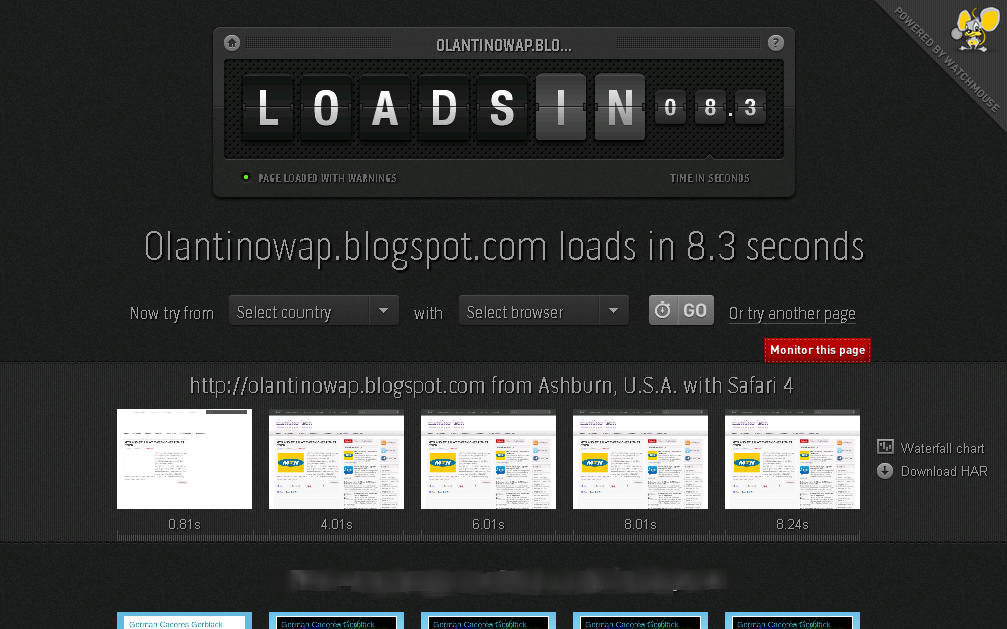
how to check your website page loading

now you can check your website page loading to know the actually seconds or minute it take to load a page on your website you can check it here the listed below website
LIST 
www.webpagetest.org/
www.tools.pingdom.com/fpt/
www.loads.in/

all the websit below allow you to check the loading of your website the second it take to load may be you site is very slow or fast it will show itso that you can make changes on it also so that your guest will not be running from your site
my site


REASON FOR A WEBSITE TO LOAD SLOWLY
1. high quality of image
2.too much of advert banners
3.too much of widgets
after you have done all this on your website now go back to the listed below link where you can check it
if you have any comment kindly post it or their is something you want us to attach that is not there kindly post it at the comment box
HAPPY VISITING


Friday, 10 August 2012

How To Add Reply Option To blogger Comment

WOW!!! This is cool option for your blogger. You can add reply button
to your every blogger comment. so it will help you to reply
to questions easily.

 1. Log in to your blogger account and Go to Design >> Edit HTML

2. Make sure you put check mark to “Expand Widget Templates

3. Find this tag by using Ctrl+F  <data:commentPostedByMsg/> 

4. Paste  below code After  <data:commentPostedByMsg/> code

<span><a expr:href='&quot;https://www.blogger.com/comment.g?blogID=YOUR-BLOG-ID&amp;postID=&quot; + data:post.id + &quot;&amp;
isPopup=true&amp;postBody=%40%3C%61%20%68%72%65%66%3D%22%23&quot; + data:comment.anchorName + &quot;%22%3E&quot; + data:comment.author + &quot;%3C%2F%61%3E#form&quot;'
 onclick='javascript:window.open(this.href, &quot;bloggerPopup&quot;, &quot;toolbar=0,location=0,statusbar=1,menubar=0,scrollbars=yes,width=450,height=450&quot;); return false;'>
<img alt='Reply To This Comment' src='https://blogger.googleusercontent.com/img/b/R29vZ2xl/AVvXsEisLVfmdXpEyGigPfUnkShTVlX7aMQdR0__uHBJAo_aC-kD3wA1oG-MzhEFVAKEj6fjjHWaPk7-f2-0tObcb0iUzcCBnadSaJwmH4l1_m5UJCN5dFt8XdRbSqpsVYIo2Th-pO_-gFLkvJLa/s1600/reply.png'/></a></span>

 You can replace YOUR-BLOG-ID with your ID

Go to dashboard and click design, then you can get your blog ID on Address bar.
It looks like below.
5. then After you finish, you can click Save Template
   You are done. 

Monday, 6 August 2012

How To Check How Many Backlinks On Your Blog


Backlinks, also known as incoming links, inbound links, inlinks, and inward links, are incoming links to a website or web page. In basic link terminology, a backlink is any link received by a web node (web page, directory, website, or top level domain) from another web node.

Inbound links were originally important (prior to the emergence of search engines) as a primary means of web navigation; today, their significance lies in search engine optimization (SEO). The number of backlinks is one indication of the popularity or importance of that website or page (for example, this is used by Google to determine the PageRank of a webpage). Outside of SEO, the backlinks of a webpage may be of significant personal, cultural or semantic interest: they indicate who is paying attention to that page.


now You can check your Blog Backlinks using Backlinkwatch visit backlinkwatch.com then type the URL of your blog to get the complete details and information about the quantity and quality of backlinks pointing to your blog.

Friday, 13 July 2012

how to add a site map table to your blog

 GET THE "PLAIN" TABLE OF CONTENT CODE:

  1. <span style="font-family: 'Courier New', Courier, monospace;"><script src="http://francel200.xtgem.com/bloggerwidgets/sitemaptable.js">  
  2. </script>  
  3. <script src="http://olantinowap.blogspot.com/feeds/posts/default?max-results=9999&alt=json-in-script&callback=loadtoc">  
  4. </script></span> 
HOW TO ADD INTO YOUR BLOGGER?
Heres How?
  • Log in to your Blogger Account.
  • Go to Dashboard
  • Then Posting > Edit Pages > New Page 
  • Then Publish see your sitemap link in your Pages.


Hope you like it my post you can subscribe to my fan page or feeds to receive updates. 
follow us on  twitter facebook 

Thursday, 21 June 2012

Add Animated Rainbow Changing Colors To The Links On Blogger

In this post i have a neat effect for the links on your blog.Using some javascript you can make the links on your blog change through different colors when the cursor is hovered over them.The effect comes from Dynamic Drive and we have a one click button to add it to your blog in seconds.Check out the demo below, simply hover your cursor over the post titles or any of the links on the demo blog.


Add Rainbow Links To Your Blog


Simply click the button below, select the blog you want it on then click add widget :

Awesome New Google Search Style Search Bar For Blogger

I'm sure you will have noticed the new Google design as covered in the post Evolving the Google design and experience on the official Google blog.While the changes have been subtle some stand out like the new sleek search bar on results pages.The new search bar has a more modern minimalist look with rounded corners and hover effect.But one new feature i quiet like is as you type your text into the search field an X appears than can be clicked to remove your text.Yes it's nothing major but still a neat feature none the less.So in this post i will show you how you can re-create the new Google search bar and use it on your blog.

Once on your blog it will look the very same, using jQuery for the X delete button and your blogs default search to generate results.This was covered on the Awesome Queness.Com design blog and with just a few changes i have it ready to go For Blogger.

Lets look at some screenshots and the live demo :

On Google 

Add The New Google Style Search Bar To Blogger


Remember Always Back Up Your Template Before You Make Changes - How To Back Up A Blogger Template

Step 1. In Your Blogger Dashboard Click Design > Edit Html

Design Edit Html Blogger

Step 2. Find the following piece of code in your blogs Html : (Click Ctrl and F for a search bar to help find the code - How To Find Code In Blogger Template Template)
]]></b:skin>
 Step 3. Copy and Paste the following code Directly Above / Before ]]></b:skin>

-Scroll Box Make Sure To Get All The Code.


/*Start Css For Google Style Search Box*/

/* div container containing the form */
#searchContainer {
margin:20px;
}

/* Style the search input field. */
#field {
float:left;
width:200px;
height:27px;
line-height:27px;
text-indent:10px;
font-family:arial, sans-serif;
font-size:1em;
color:#333;
background: #fff;
border:solid 1px #d9d9d9;
border-top:solid 1px #c0c0c0;
border-right:none;
}

/* Style the "X" text button next to the search input field */
#delete {
float:left;
width:16px;
height:29px;
line-height:27px;
margin-right:15px;
padding:0 10px 0 10px;
font-family: "Lucida Sans", "Lucida Sans Unicode",sans-serif;
font-size:22px;
background: #fff;
border:solid 1px #d9d9d9;
border-top:solid 1px #c0c0c0;
border-left:none;
}
/* Set default state of "X" and hide it */
#delete #x {
color:#A1B9ED;
cursor:pointer;
display:none;
}
/* Set the hover state of "X" */
#delete #x:hover {
color:#36c;
}
/* Syle the search button. Settings of line-height, font-size, text-indent used to hide submit value in IE */
#submit {
cursor:pointer;
width:70px;
height: 31px;
line-height:0;
font-size:0;
text-indent:-999px;
color: transparent;
background: url(https://blogger.googleusercontent.com/img/b/R29vZ2xl/AVvXsEh2EpHhf9c4zb3GMc7uXeQd4bwQEYMp9U8YFNN_elfPskb_N1iz97fYCdoRUc8bHxVEZcMcb8c-YGQekafnYIAfmOnXwSJd_RQGDOtETkq1SuCoK_D76BGKtNY4uHFVtaso23poP-6-ATQG/s1600/ico-search.png) no-repeat #4d90fe center;
border: 1px solid #3079ED;
-moz-border-radius: 2px;
-webkit-border-radius: 2px;
}
/* Style the search button hover state */
#submit:hover {
background: url(https://blogger.googleusercontent.com/img/b/R29vZ2xl/AVvXsEh2EpHhf9c4zb3GMc7uXeQd4bwQEYMp9U8YFNN_elfPskb_N1iz97fYCdoRUc8bHxVEZcMcb8c-YGQekafnYIAfmOnXwSJd_RQGDOtETkq1SuCoK_D76BGKtNY4uHFVtaso23poP-6-ATQG/s1600/ico-search.png) no-repeat center #357AE8;
border: 1px solid #2F5BB7;
}
/* Clear floats */
.fclear {clear:both}

/*End Google Style Search Bar - Info @ http://www.olantinowap.blogspot.com*/
Note - To change the width of the search bar simply change the line highlighted in yellow from 200px up or down.

Step 4. Find the following piece of code in your blogs Html : (Click Ctrl and F for a search bar to help find the code - How To Find Code In Blogger Template Template)
  </head> 
 Step 5. Now Copy And Paste This Code Directly Above / Before </head>

Note - If you have previously added jQuery script to your template you can remove the code highlighted in green.
<script src='http://code.jquery.com/jquery-1.6.1.min.js' type='text/javascript'/>
<script type='text/javascript'>
$().ready(function() {
// if text input field value is not empty show the &quot;X&quot; button
$(&quot;#field&quot;).keyup(function() {
$(&quot;#x&quot;).fadeIn();
if ($.trim($(&quot;#field&quot;).val()) == &quot;&quot;) {
$(&quot;#x&quot;).fadeOut();
}
});
// on click of &quot;X&quot;, delete input field value and hide &quot;X&quot;
$(&quot;#x&quot;).click(function() {
$(&quot;#field&quot;).val(&quot;&quot;);
$(this).hide();
});
});
</script>


Awesome New Google Search Style Search Bar For Blogger
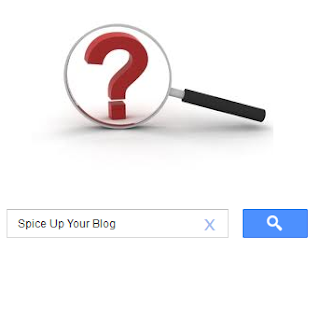

I'm sure you will have noticed the new Google design as covered in the post Evolving the Google design and experience on the official Google blog.While the changes have been subtle some stand out like the new sleek search bar on results pages.The new search bar has a more modern minimalist look with rounded corners and hover effect.But one new feature i quiet like is as you type your text into the search field an X appears than can be clicked to remove your text.Yes it's nothing major but still a neat feature none the less.So in this post i will show you how you can re-create the new Google search bar and use it on your blog.

Once on your blog it will look the very same, using jQuery for the X delete button and your blogs default search to generate results.This was covered on the Awesome Queness.Com design blog and with just a few changes i have it ready to go For Blogger.

Lets look at some screenshots and the live demo :

On Google


On Blogger


On the demo page i have it wide across the top of the posts but you can also easily make it smaller to fit nicely into your sidebar.If you want to actually try it just search for one of the recent posts you can see in the sidebar of that blog.

View Demo Button


Add The New Google Style Search Bar To Blogger


Remember Always Back Up Your Template Before You Make Changes - How To Back Up A Blogger Template

Step 1. In Your Blogger Dashboard Click Design > Edit Html

Design Edit Html Blogger

Step 2. Find the following piece of code in your blogs Html : (Click Ctrl and F for a search bar to help find the code - How To Find Code In Blogger Template Template)

]]></b:skin>

Step 3. Copy and Paste the following code Directly Above / Before ]]></b:skin>

-Scroll Box Make Sure To Get All The Code.
/*Start Css For Google Style Search Box*/

/* div container containing the form */
#searchContainer {
margin:20px;
}

/* Style the search input field. */
#field {
float:left;
width:200px;
height:27px;
line-height:27px;
text-indent:10px;
font-family:arial, sans-serif;
font-size:1em;
color:#333;
background: #fff;
border:solid 1px #d9d9d9;
border-top:solid 1px #c0c0c0;
border-right:none;
}

/* Style the "X" text button next to the search input field */
#delete {
float:left;
width:16px;
height:29px;
line-height:27px;
margin-right:15px;
padding:0 10px 0 10px;
font-family: "Lucida Sans", "Lucida Sans Unicode",sans-serif;
font-size:22px;
background: #fff;
border:solid 1px #d9d9d9;
border-top:solid 1px #c0c0c0;
border-left:none;
}
/* Set default state of "X" and hide it */
#delete #x {
color:#A1B9ED;
cursor:pointer;
display:none;
}
/* Set the hover state of "X" */
#delete #x:hover {
color:#36c;
}
/* Syle the search button. Settings of line-height, font-size, text-indent used to hide submit value in IE */
#submit {
cursor:pointer;
width:70px;
height: 31px;
line-height:0;
font-size:0;
text-indent:-999px;
color: transparent;
background: url(https://blogger.googleusercontent.com/img/b/R29vZ2xl/AVvXsEh2EpHhf9c4zb3GMc7uXeQd4bwQEYMp9U8YFNN_elfPskb_N1iz97fYCdoRUc8bHxVEZcMcb8c-YGQekafnYIAfmOnXwSJd_RQGDOtETkq1SuCoK_D76BGKtNY4uHFVtaso23poP-6-ATQG/s1600/ico-search.png) no-repeat #4d90fe center;
border: 1px solid #3079ED;
-moz-border-radius: 2px;
-webkit-border-radius: 2px;
}
/* Style the search button hover state */
#submit:hover {
background: url(https://blogger.googleusercontent.com/img/b/R29vZ2xl/AVvXsEh2EpHhf9c4zb3GMc7uXeQd4bwQEYMp9U8YFNN_elfPskb_N1iz97fYCdoRUc8bHxVEZcMcb8c-YGQekafnYIAfmOnXwSJd_RQGDOtETkq1SuCoK_D76BGKtNY4uHFVtaso23poP-6-ATQG/s1600/ico-search.png) no-repeat center #357AE8;
border: 1px solid #2F5BB7;
}
/* Clear floats */
.fclear {clear:both}

/*End Google Style Search Bar - Info @ http://www.spiceupyourblog.com*/

Note - To change the width of the search bar simply change the line highlighted in yellow from 200px up or down.

Step 4. Find the following piece of code in your blogs Html : (Click Ctrl and F for a search bar to help find the code - How To Find Code In Blogger Template Template)

</head>

Step 5. Now Copy And Paste This Code Directly Above / Before </head>

Note - If you have previously added jQuery script to your template you can remove the code highlighted in green.

<script src='http://code.jquery.com/jquery-1.6.1.min.js' type='text/javascript'/>
<script type='text/javascript'>
$().ready(function() {
// if text input field value is not empty show the &quot;X&quot; button
$(&quot;#field&quot;).keyup(function() {
$(&quot;#x&quot;).fadeIn();
if ($.trim($(&quot;#field&quot;).val()) == &quot;&quot;) {
$(&quot;#x&quot;).fadeOut();
}
});
// on click of &quot;X&quot;, delete input field value and hide &quot;X&quot;
$(&quot;#x&quot;).click(function() {
$(&quot;#field&quot;).val(&quot;&quot;);
$(this).hide();
});
});
</script>

Step 6. Save your template, we have the Css added to style the search bar and the jQuery for the X button now we add the html.

Step 7. Head back to your blogs design page and click Add A Gadget > Choose Html/Javascript.


Step 8. Copy and Paste the following code into the Html/Javascript gadget :

<div id="searchContainer">
<form name="SUYB" action="/search" method="get">
<input type="text" id="field" id="s" name="q"/>
<div id="delete"><span id="x">x</span></div>
<input type="submit" name="submit" id="submit" value="Search" />
</form>
</div>

Step 9. Save the html/javascript gadget and you can drag and drop it into place.

Tuesday, 19 June 2012

how to add facebook like botton

Here is another great post its facebook like button which enables your blog visitors to share your blog content on their Facebook profiles with one click. Get one now and start sharing it and liking it.


For an example, click the below button to Like this post:


Standard Facebook Like Button for Blogger


Step 1: Go to Layout (Design) > Edit HTML and check “Expand Widget Templates”.

Step 2: Find <data:post.body/> and immediately after/before it (or both) add the following codes.

Step 3: Paste it after
<b:if cond='data:blog.pageType != &quot;static_page&quot;'>
  1. <b:if cond='data:blog.pageType != &quot;static_page&quot;'>  
  2. <iframe allowTransparency='true' expr:src='&quot;http://www.facebook.com/plugins/like.php?href=&quot; + data:post.url + &quot;&amp;send=false&amp;layout=standard&amp;show_faces=false&amp;width=450&amp;action=like&amp;font=arial&amp;colorscheme=light&amp;height=35&quot;' frameborder='0' scrolling='no' style='border:none; overflow:hidden; width:450px; height:35px;'/></b:if>  

Like Button with Box Count for Blogger

Follow the first two steps mentioned above and paste the below script:
  1. <b:if cond='data:blog.pageType != &quot;static_page&quot;'>  
  2. <iframe allowTransparency='true' expr:src='&quot;http://www.facebook.com/plugins/like.php?href=&quot; + data:post.url + &quot;&amp;send=false&amp;layout=box_count&amp;show_faces=false&amp;width=55&amp;action=like&amp;font=arial&amp;colorscheme=light&amp;height=65&quot;' frameborder='0' scrolling='no' style='border:none; overflow:hidden; width:55px; height:65px;'/></b:if>  

Facebook Like Button with Button Count
Follow the first two steps and paste the below script:
  1. <b:if cond='data:blog.pageType != &quot;static_page&quot;'>  
  2. <iframe allowTransparency='true' expr:src='&quot;http://www.facebook.com/plugins/like.php?href=&quot; + data:post.url + &quot;&amp;send=false&amp;layout=button_count&amp;show_faces=false&amp;width=90&amp;action=like&amp;font=arial&amp;colorscheme=light&amp;height=21&quot;' frameborder='0' scrolling='no' style='border:none; overflow:hidden; width:90px; height:21px;'/>  
  3. </b:if>  


Customizations

Notice: You can make some changes to give your buttons a different styles. If you want to change the font, then find font=arial and change it to any one shown below:

  1. font=lucida%2Bgrande  
  2. font=segoe%2Bui  
  3. font=tahoma  
  4. font=trebuchet%2Bms  
  5. font=verdana 
    Step 1: Go to Layout (Design) > Edit HTML and check “Expand Widget Templates”.

    Step 2: Find <data:post.body/> and immediately after/before it (or both) add the following codes.

    Step 3: Paste it after
    <b:if cond='data:blog.pageType != &quot;static_page&quot;'>
    1. <b:if cond='data:blog.pageType != &quot;static_page&quot;'>  
    2. <iframe allowTransparency='true' expr:src='&quot;http://www.facebook.com/plugins/like.php?href=&quot; + data:post.url + &quot;&amp;send=false&amp;layout=standard&amp;show_faces=false&amp;width=450&amp;action=like&amp;font=arial&amp;colorscheme=light&amp;height=35&quot;' frameborder='0' scrolling='no' style='border:none; overflow:hidden; width:450px; height:35px;'/></b:if>  

    Like Button with Box Count for Blogger

    Follow the first two steps mentioned above and paste the below script:
    1. <b:if cond='data:blog.pageType != &quot;static_page&quot;'>  
    2. <iframe allowTransparency='true' expr:src='&quot;http://www.facebook.com/plugins/like.php?href=&quot; + data:post.url + &quot;&amp;send=false&amp;layout=box_count&amp;show_faces=false&amp;width=55&amp;action=like&amp;font=arial&amp;colorscheme=light&amp;height=65&quot;' frameborder='0' scrolling='no' style='border:none; overflow:hidden; width:55px; height:65px;'/></b:if>  

    Facebook Like Button with Button Count
    Follow the first two steps and paste the below script:
    1. <b:if cond='data:blog.pageType != &quot;static_page&quot;'>  
    2. <iframe allowTransparency='true' expr:src='&quot;http://www.facebook.com/plugins/like.php?href=&quot; + data:post.url + &quot;&amp;send=false&amp;layout=button_count&amp;show_faces=false&amp;width=90&amp;action=like&amp;font=arial&amp;colorscheme=light&amp;height=21&quot;' frameborder='0' scrolling='no' style='border:none; overflow:hidden; width:90px; height:21px;'/>  
    3. </b:if>  


    Customizations

    Notice: You can make some changes to give your buttons a different styles. If you want to change the font, then find font=arial and change it to any one shown below:

    1. font=lucida%2Bgrande  
    2. font=segoe%2Bui  
    3. font=tahoma  
    4. font=trebuchet%2Bms  
    5. font=verdana 
 

Remove blogger navbar

blogger-navbar-remove
Blogger have many features some are good some are bad. One of the blogger feature is navbar but most of the bloggers hates the navbar. I recommend to use Custom blogger template which is better then the blogger’s template. Well if you still want to use blogger’s template and wanted to remove the blogger navbar then simply follow the simple steps.


Removing Blogger’s Navbar


1. Login into your blogger blog.
2. Go to template and click on Edit Html
3. Now search <b:skin><![CDATA[ and paste the following code just after it.
#navbar-iframe { 
display: none !important; 
}


4. Now save your blogger template and you have done.

Monday, 18 June 2012

Submit Your Blogspot Sitemap to Yahoo

Yahoo Site Explorer Add My Site page
One of the most important ways to attract traffic to your site is to ensure that your Blogger (Blogspot) blog is properly indexed by popular search engines such as Yahoo. If you want to increase your chances of having your site quickly indexed by the Yahoo search engine it pays to submit your site and your feed. In this tutorial we will be covering the process of signing up with Yahoo, authenticating your site and adding your site feed to Yahoo Site Explorer.

Yahoo can be notoriously slow at indexing and will not necessarily include all crawled pages in its search results. For guaranteed inclusion you can opt for a paid service but if you follow the steps below you have a good chance of having your Blogger blog properly indexed relatively quickly and without any cost.

1. Sign up for a free Yahoo Account if you don't already have one.

2. Sign in to Yahoo Site Explorer where you will be taken to the MySites page.

3. Submit your Blogger website by entering the URL of your blog and then clicking on the Add My Site button.

Yahoo Site Explorer Add My Site
4. You will now see your website address included in the site list. The 3 columns to the right contain information about feeds, actions, and status. You will notice that the status of your site will be set to new (represented by a yellow circle). Click on the link to your site or click the Explore button.

5. You will be taken to the results page and should get a message like the one pictured below.

Yahoo site Explorer Results Page
6. From the menu on the left click on the Authentication

7. You will be presented with 2 authentication options. Choose Add a META Tag from the dropdown menu then copy the code provided using Ctrl + C.

8. In a new window of your browser login to your Blogger blog. Keep the window of Site Explorer open as we will be returning.

9. Navigate to Layout > Edit HTML in your Blogger (Blogspot) blog

10. When you arrive at the Template page it is a good idea to make a backup of your site's template as a precaution. Go ahead and download it your computer by clicking on the Download Template link. Remember if you inadvertently overwrite some code you may not be able to restore your template so it is worth taking an extra few moments to do this step.

11. Once you have backed up your site locate the Head tag. It will be only a few lines of code down from the top. Now insert the copied code from Yahoo in the position suggested as shown in the picture below using the Ctrl + V command.

Blogger Template Head Tag
12. Once you have pasted the code into the template there is still one further action needed. You will need to add a trailing slash at the end of the new line of code to avoid getting a parse error. Once you have added the trailing slash and are certain you have placed the code in the correct position go ahead and click on the Save Template button.

add yahoo meta tag to blogger template
13. Return to Yahoo Site Explorer and follow the mysite link. You will see that the status of your site has been verified and is represented by a green checkmark.

14. From the lefthand menu select Feeds. You will be taken to the feeds page where you can go ahead and add a feed for your blog by entering the URL of the feed. Notice in the example below I have set an extra parameter to handle redirection of the feed by services such as Feedburner.

Add a Feed to Yahoo
15. Once the feed has been accepted it takes around 24 hours before it is active. After this time and provided there are no errors Yahoo displays "processed" followed by a green tick as can be seen in the picture below.

Yahoo Feed Confirmation
You have now completed the steps involved in having your Blogger (Blogspot) blog crawled and indexed by Yahoo. All that is left to do is to check back periodically to see if Yahoo has indexed your pages. This process can take time so don't expect overnight results. However once Yahoo recognises your feed your pages will be regularly crawled and any updates in content indexed. The process of adding a feed and verifying your site will have gone a long way towards ensuring your site is included in Yahoo search engine results.

Tips for Adding Blogger Blog to Yahoo Site Explorer
Tips for Submitting Your Blogger Blog to Yahoo
Yahoo Search Engine Optimisation for Blogspot Bloggers
SEO For Blogger Blogs with Yahoo
Faster indexing of your Blogger Blog by Yahoo
How to Ensure Your Blogger Blog is Indexed by Yahoo
Speed Up Indexing of Your Blogger Blog by Yahoo
Yahoo Search Engine and Blogger Blogs

In this tutorial you have learned how to submit your Blogger (Blogspot) blog to Yahoo Site Explorer by authenicating your site and adding a feed which Yahoo can use as a sitemap to improve its indexing of your pages.

Sunday, 17 June 2012

How to Embed External Content on Your Blogger Posts or Pages


When you write content or publish posts, sometimes you may wonder how to add external content in your posts. Yeah... it could be image, links. But those are possible in Blogger post editor. Here I'm referring to external content such as embedding videos, simple widgets, buttons kind of things. Did you wanted to add such a content in your posts. May be not yet. But think of a scenario adding poll widget in a post or it could be a follow button on a page in between text. Wonder how to add such content to your posts via Post Editor?


Blogger let you write your content with text and by adding media such as images and videos directly to the post editor while you are in Compose mode. But did you ever try out HTML mode? Alright, that's what I'm talking about. HTML mode of your post editor reveals raw HTML code behind your content. So it will enable you to edit your content if you are much familiar to HTML (Hyper Text Markup Language). Couldn't find HTML mode yet? Be patient and continue with steps below.

Steps:

1. Navigate to Blogger Dashboard.

2. Click on your Blog Title.

3. Now as per your requirement, follow relevant instructions below.

Embed content on a post

Either click New post button to add content to your new post or jump to Posts tab and click Edit link by hovering on your existing post.

Embed content on a static page

Jump to Pages tab and either click Edit link by hovering on an existing page or add Blank page via New page drop down button if you wanna embed content in a new page.


4. Now you will be directed to post editor. Switch to HTML view by clicking HTML button on top toolbar.

5. Now add or edit your existing code in the content text area and proceed with other modifications you prefer.

6. After modifying content, click Preview button to see how your code render in your post.

Note: Sometimes your code may not render or function well in preview mode.

7. Now Save or Publish your post.

Enjoy :-)
we love comments 
follow us on twitter 
add us on facebook 

How to Add an External Widget or Codes to Blogger

As a webmaster, web widgets are really matters if you wanna impress your readers or it can be used to improve user experience on your site. You can find different kind of widgets all over the web. It could be an official widget provided by organization, social plugin offered by social networks, widget offered by an online program or custom widget developed by users. And except for widgets, you might wanna add external code to your layout to render them, such as advertisements, badges, images, videos, links, web tools. Commonly, in most scenarios they will provide HTML code or Java Script code for you to add on your blog. But when it comes to Blogger, you may have no idea about how you gonna add them. You wanna know how to?

Blogger officially offers you list of widgets to be added on your blog directly via Blogger gadget list. But beyond Blogger gadgets, it does let you add external aka third-party functionality or code to your blog. Blogger has a specific element called HTML/JavaScript. It will enable users to render their external code on their blogs without accessing blog template directly. So if you are non-technical sort of user, you will find this really beneficial. Got external code to add on your blog? Let's figure out how to.

Steps:

1. Navigate to Blogger Dashboard.

2. Click on your Blog Title.

3. Jump to Layout tab from left pane.

4. Here you will able to see all your elements on your layout. Click on an Add a Gadget link.

5. Scroll and find HTML/JavaScript element from the pop-up gadget list.


6. Now you can sum up a title on Title field if you want and add your third-party content or code right into the Content text field.

7. After adding your code, click Save button.

8. Now arrange or position your element by dragging it over the layout.

9. Preview your blog for added element on your blog.

Note: Sometimes your element or code may not render or function well in preview mode.

10. Once confirmed preview, click Save arrangement button on top.

Enjoy :-)

Adding Floating Share Buttons with Pinterest ‘Pin it’ to Blogger Posts

There were so many requests on this post asking me to update the floating share buttons with Pinterest Pin it button. But I wasn’t on Pinterest then and never gave gave it much consideration…I said to myself it’s just a new, obscure social network that’s going to fade away in no time. I was wrong! Pinterest has grown to be the third largest social network in the world after Facebook and Twitter and that got me thinking where the heck is Google +! Pinterest can be a real source of traffic if well used and this is a proven fact. Ignoring the potential of Pinterest in driving traffic to your site and exposing your content to a wider audience isn’t such a wise idea.
floating share button with pinterest
This new floating share buttons is quite similar to the one I posted last year but the tweet button is changed and Pinterest “Pin it” button is now included. Other buttons included are StumbleUpon, Digg, Google +1 and Facebook share.
Adding these floating share buttons to your blog is a sure way to drive more traffic to your posts as users visitors find it easier using the fixed buttons. It’s a clear message asking them they should share the post ;)

Adding the Floating Share Buttons to Blogger

- Log in to Blogger and go to Template > Edit HTML
- Check the box labelled Expand Widgets Template
- Search for <data:post.body/> or <div class='post-footer-line post-footer-line-1'/>
- In the line just below that, paste this code:


<b:if cond='data:blog.pageType == &quot;item&quot;'>
<!--Start Floating Share Buttons with Pinterest doncaprio.com-->
<style type='text/css'>
#pageshare {position:fixed; bottom:15%; right:10px; float:left; border: 1px solid black; border-radius:5px;-moz-border-radius:5px;-webkit-border-radius:5px;background-color:#eff3fa;padding:0 0 2px 0;z-index:10;} #pageshare .sbutton {float:left;clear:both;margin:5px 5px 0 5px;}
.fb_share_count_top {width:48px !important;}
.fb_share_count_top, .fb_share_count_inner {-moz-border-radius:3px;-webkit-border-radius:3px;}
.FBConnectButton_Small, .FBConnectButton_RTL_Small {width:49px !important; -moz-border-radius:3px;-webkit-border-radius:3px;}
.FBConnectButton_Small .FBConnectButton_Text {padding:2px 2px 3px !important;-moz-border-radius:3px;-webkit-border-radius:3px;font-size:8px;}
</style>
<div id='pageshare' title='Share with your friends'>
<div class='sbutton' id='fb'>
<a href='http://www.facebook.com/sharer.php' name='fb_share' type='box_count'>Share</a><script src='http://static.ak.fbcdn.net/connect.php/js/FB.Share' type='text/javascript'/>
</div>
<div class='sbutton' id='rt'>
<script src='http://tweetmeme.com/i/scripts/button.js' type='text/javascript'/>
</div>
<div class='sbutton' id='gplusone'>
<script src='https://apis.google.com/js/plusone.js' type='text/javascript'/>
<g:plusone size='tall'/>
</div>
<div class='sbutton' id='gb'>
<a class='pin-it-button' count-layout='vertical' expr:href='&quot;http://pinterest.com/pin/create/button/?url=&quot; + data:post.url'>Pin It</a>
<a href='javascript:void(run_pinmarklet())' style='margin-left:-46px; width:43px; height:20px; display:inline-block;'/>
<script src='http://assets.pinterest.com/js/pinit.js' type='text/javascript'/>
<script type='text/javascript'>
function run_pinmarklet() {
var e=document.createElement(&#39;script&#39;);
e.setAttribute(&#39;type&#39;,&#39;text/javascript&#39;);
e.setAttribute(&#39;charset&#39;,&#39;UTF-8&#39;);
e.setAttribute(&#39;src&#39;,&#39;http://assets.pinterest.com/js/pinmarklet.js?r=&#39; + Math.random()*99999999);
document.body.appendChild(e);
}
</script>
</div>
<div class='sbutton' id='su'>
<script src='http://www.stumbleupon.com/hostedbadge.php?s=5'/>
</div>
<div class='sbutton' id='digg' style='margin-left:3px;width:48px'>
<script src='http://widgets.digg.com/buttons.js' type='text/javascript'/>
<a class='DiggThisButton DiggMedium'/>
</div>
<br/>
<div style='clear: both;font-size: 8px;text-align:center;'><a href='http://www.doncaprio.com/2012/05/adding-floating-share-buttons-with-pinterest-pin-it-for-blogger.html' style='text-decoration: none;' target='_blank'><font color='#816D77' decoration='none'>Get widget</font></a></div><!-- Do not remove this link -->
</div>
<!--End Floating Share Buttons with Pinterest doncaprio.com-->
</b:if>
- Now save your template.
This widget will only be shown in post pages because I couldn’t find a way to make the Pinterest button work on all pages. If you want the floating share buttons to appear on the left side of your post, find and change #pageshare {position:fixed; bottom:15%; right:10px; to this: #pageshare {position:fixed; bottom:15%; left:10px;

Friday, 15 June 2012

Top 15 google tricks and secrets

google tricks and secrets


There are lots of Google tricks to enhance your productivity.Below is a list of top 15 Google tricks that I believe everyone should be aware of it.


1. Google SSL


SSL stands for Secure Socket Layer


This is the new and in beta feature from Google. Google SSL is secure connection between your computer and Google server. Any third party can't your search queries and information. The main advantage of this service is, your search visits doesn't leave any referrer links to the visited URL


2 Google search to check Flight status


Syntax:
<Airlines-name> <Flight-number>


3 Search Mp3 of a particular singer/artist/album/song


 You can easily find an MP3 song on the Internet easily by narrowing the search by using the syntax:

?intitle:index.of? mp3
Try searching for Eminem space bound:
?intitle:index.of? mp3 Eminem   


4 All the Google Logos in one page by Google

 Try it..


5 Google dedication to Mothers all over the world


 6. Google Timeline


Know the Google history with their milestones in an Interactive Timeline manner on Google Timeline.
Check the Google history page as well.


 7 Go Green by Google


8 Rare Google Search Tips:

Try it...


9 Google Romance Search.


10 Google can search patents.

Google can scan through the thousands of patents all over the world.


11 Google TiSP

TiSP - Toilet Internet Service Provider. LOL


12 Google Gulp

Google can now quench your thirst with knowledge


13 Google url Shortener

You can now shorten your lengthy URLs using Google's goo.gl


14 Google Artificial Intelligence


15 Google indroduced Gmail Paper


Here is the new Gmail Paper. This is a new option available in Google Gmail.
You can easily request a hard copy of your message. Google will send you.


‟if you like this post please take 5 seconds to like it
and share it‟


like our page on facebook